- Use canned responses in Gmail.
- Use voice dictation in Google Docs.
- Use priority in-box with unread, starred, everything else in Gmail. Unread or star emails that need more action later.
- Use reminders in Google calendar as to-do list.
- Set up VIP contacts in iPhone for notifications of important emails.
- Save your iPhone voicemail by emailing them to yourself.
- Set up a hot corner on your mac to lock it when you walk away.
- Enable 2-step verification to log into Google.
- Use a password manager like DashLane to save unique passwords for every website.
- Command-tab to switch between applications on a Mac if you are multi-tasking.

Showing posts with label Google. Show all posts
Showing posts with label Google. Show all posts
Saturday, March 4, 2017
Top 10 Tech Tips for Power Users


Thursday, October 13, 2016
Going Paper-Free as Grade Dean
The following are the launch grant goals from Miles Billings, MS 7th Grade Dean:
- Find ways to consolidate all 7th student data into neat, organized, searchable files for faculty (and advisors) to access at all times.
- Let this pilot of data consolidation serve as a model for other grade deans to adapt and adopt overtime.
- Delineate those data between what is to be public and what is to be confidential, establish more clear policy around that.
- Make all parent call sheets (filled out three-four times per year on handwritten paper) to be completed online and paper-free within the same individual student files. This project is big enough that it may require a two year pilot on my end to make it all work.
Since becoming 7th Grade Dean in 2011-2012, I have sought to be as organized as possible given my yearly charge of over 80 students. Paper organization has never been a strong suit of mine yet I have reluctantly accumulated shelves full of three ring binders over the last ten years at BB&N. I realized that the most efficient way to capture all of these student data, and to keep it organized and easy to sort through, would be to go paperless as Grade Dean. Not an easy task and would also require the help of our entire Middle School faculty.
Our investment in Google Apps has made this possible but, the ultimate goal of complete paperless-ness is yet to be obtained. I would say I am 90% of the way there. Here is what we have transferred from paper to electronic over the years:
Many of these listed items are not all my doing. Most, in fact, require the help and support of at least part of, if not the whole, Middle School faculty. There are still a few items which I am attempting to address this academic year, and again need the support of certain key members within the faculty. These are:
In the end, going paperless gives me peace of mind that knowing that I can easily find documents from this year, or years past, and can easily share and collaborate on student data with the whole Middle School faculty.
Miles Billings
History Teacher
7th Grade Dean
Our investment in Google Apps has made this possible but, the ultimate goal of complete paperless-ness is yet to be obtained. I would say I am 90% of the way there. Here is what we have transferred from paper to electronic over the years:
- All incoming student notes from the Lower School and admissions
- All matching of students to advisors and homerooms
- All current student notes, updated throughout the year, in the form of a commonly shared Google Sheet which is then passed on to the 8th grade team at the end of the year.
- All parent communication data from advisors to home
- All faculty meeting notes and presentations regarding current students
- All academic grades and comments
- All Weekly Reports assigned to particular students by the Student Support Team
- All Middle School mix faculty chaperone sign ups
Many of these listed items are not all my doing. Most, in fact, require the help and support of at least part of, if not the whole, Middle School faculty. There are still a few items which I am attempting to address this academic year, and again need the support of certain key members within the faculty. These are:
- 7th grade detention write ups: done on Google Form by student, submitted online
- Club and after school program rosters, consolidated and easily accessed by faculty
In the end, going paperless gives me peace of mind that knowing that I can easily find documents from this year, or years past, and can easily share and collaborate on student data with the whole Middle School faculty.
Miles Billings
History Teacher
7th Grade Dean
Sunday, October 5, 2014
6th Grade Technology- September in Review

5th Grade Technology- September in Review

4th Grade Technology- September in Review

Thursday, April 28, 2011
Web Browsers: Further Exploration
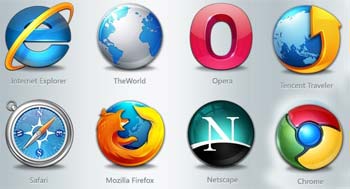
While downloading Google Chrome (a web browser like Internet Explorer and Mozilla Firefox), I came across a good beginners guide to web browsers and the internet. If anyone is interested in the basics of web browsers and internet usage, then this link: http://www.20thingsilearned.com/ has a handy starting guide.
From the charming format that imitates a book to helpful information regarding cloud computing and a thorough explanation of cookies this handy guide of "20 Things I Learned About Browsers and the Web" is a good primer to understanding more about the internet and browsers.
One of the chapters of the book that might be especially helpful for projects is the "Using Web Addresses to Stay Safe" section. (Found here: http://www.20thingsilearned.com/url). Although not directly related to school projects the chapter addresses discerning how to tell what sites are legitimate and which are not.
Hopefully, starting with the site "20 Things I Learned About Browsers and the Web" will lead to learning more than 20 things about the internet and web browsers.
Wednesday, April 13, 2011
Tuesday, February 22, 2011
Doodle 4 Google K-12 contest

Doodle 4 Google is a competition where Google invites K-12 students to use their artistic talents to think big and redesign Google’s homepage logo for millions to see. At Google, they believe that dreaming about future possibilities leads to tomorrow’s leaders and inventors, so this year they're inviting U.S. kids to exercise their creative imaginations around the theme, "What I’d like to do someday…"
Whether students want to find a cure for cancer or take a trip to the moon, it all starts with art supplies and some 8.5" x 11" paper. And, one lucky student artist will take home a $15,000 college scholarship and $25,000 technology grant for their school, among many other prizes.
Registration closes at 11:59:59 p.m. Pacific Time (PT) on March 2, 2011, and entries must be postmarked by March 16, 2011 11:59:59 p.m. Pacific Time (PT). The winning doodle will be featured on Google.com's homepage on May 20, 2011.
Monday, December 6, 2010
Exploring Computational Thinking

Over the past year, a group of California-credentialed teachers along with Google engineers collaborated to develop Exploring Computational Thinking, a program committed to promoting computational thinking (CT) throughout the K-12 curriculum to support student learning and expose everyone to this critical set of skills. Similar to some of Google's other initiatives in education, including CS4HS and Google Code University, they are providing educators with access to their curriculum models, resources, and communities to help teachers learn more about CT and discuss it as a strategy for teaching and understanding core curriculum as well as easily incorporate CT into their own curriculum, whether it be in math, science, language, history, or beyond.
To learn more about Google's program or access CT curriculum materials and other resources, visit them at http://www.google.com/edu/ect.
Wednesday, November 3, 2010
Google Tools for Educators
Google Tools for Educators: The Best Features for Busy Teachers
According to Edutopia, “Among all the links and downloads out there, it can be hard for teachers to know which ones work best. Google has made it easier by creating Google for Educators, which compiles some of the search engine's most useful features in one place. Whether you're teaching Spanish or social studies, mathematics or music, there's a free Google feature that will make your lessons more dynamic and your projects more organized. The lively, informative Web site offers step-by-step visual tours and even videos to help you get set up.” This Edutopia article walks teachers through the best Google tools out there, including: Google maps, Google docs, Glogger, and Google Book search.
Google for Educators
Learn more about Google for educators
Teacher’s Guide to Google Tools for the Classroom
Google suggested classroom activities that use Google Aps
According to Edutopia, “Among all the links and downloads out there, it can be hard for teachers to know which ones work best. Google has made it easier by creating Google for Educators, which compiles some of the search engine's most useful features in one place. Whether you're teaching Spanish or social studies, mathematics or music, there's a free Google feature that will make your lessons more dynamic and your projects more organized. The lively, informative Web site offers step-by-step visual tours and even videos to help you get set up.” This Edutopia article walks teachers through the best Google tools out there, including: Google maps, Google docs, Glogger, and Google Book search.
Google for Educators
Learn more about Google for educators
Teacher’s Guide to Google Tools for the Classroom
Google suggested classroom activities that use Google Aps
Thursday, October 28, 2010
ATS Picks 10/28/10
1. 100+ Google Tricks that will Save you Time in School
Check out these great tips and learn how to use Google to convert units, do a timeline search, search for a specific file type, search for a face, use Google News, study the oceans, and much more.
2. Protecting Reputations Online
2. Protecting Reputations Online
This 3 minute video illustrates what happens to information that you share on the web. Common Craft's unique style makes it easy to understand some of the risks of oversharing information Online.

A small contribution in the fight against rampant immappancy by Kai Krause.
This map makes it very clear how big Africa really is. Be sure to zoom in to get the full picture.
4. Lincoln Middle Schools Students Use Technology to Help Each Other Succeed
4. Lincoln Middle Schools Students Use Technology to Help Each Other Succeed
Campus Innovation: Kids Teaching Kids
Lincoln Middle School creates an innovative learning environment centered on kids teaching kids. Middle school students create math video lessons and collaborate via a Moodle-powered class website, creating a community of learners. Eric Marcos teaches 6th Grade Mathematics at Lincoln Middle School in Santa Monica, California. He also operates Mathtrain.TV, a site that features math video lessons (a.k.a. mathcasts) created by his students.
Subscribe to:
Posts (Atom)